How-To Guides
Everything you need to get your league or tournament up and running.
🚀 Quick Start Guide
Get Your League Running in 5 Steps
GameTriQ is designed to get you up and running quickly. Here's the typical workflow from zero to your first game:
- Log in to your Admin Dashboard - You'll receive login credentials when you sign up. Go to your league's URL (e.g., yourleague.gametriq.com) and click "Staff Login".
- Add your teams - Use the Teams tab to add each team with their coach name and contact info.
- Add players to rosters - Use the Players tab to add players to each team. Include jersey numbers and positions.
- Create your schedule - Use the Schedule tab to set up games. Select division, teams, date/time, and location.
- Share access with scorekeepers - Give scorekeepers the login URL so they can enter scores and stats on game day.
Start small! Add a few teams and schedule a couple games to test the flow before entering your full league.
👤 Admin Dashboard Overview
Understanding Your Dashboard
When you log in as an admin, you'll see your League Administration Dashboard. This is your command center for managing everything in your league.
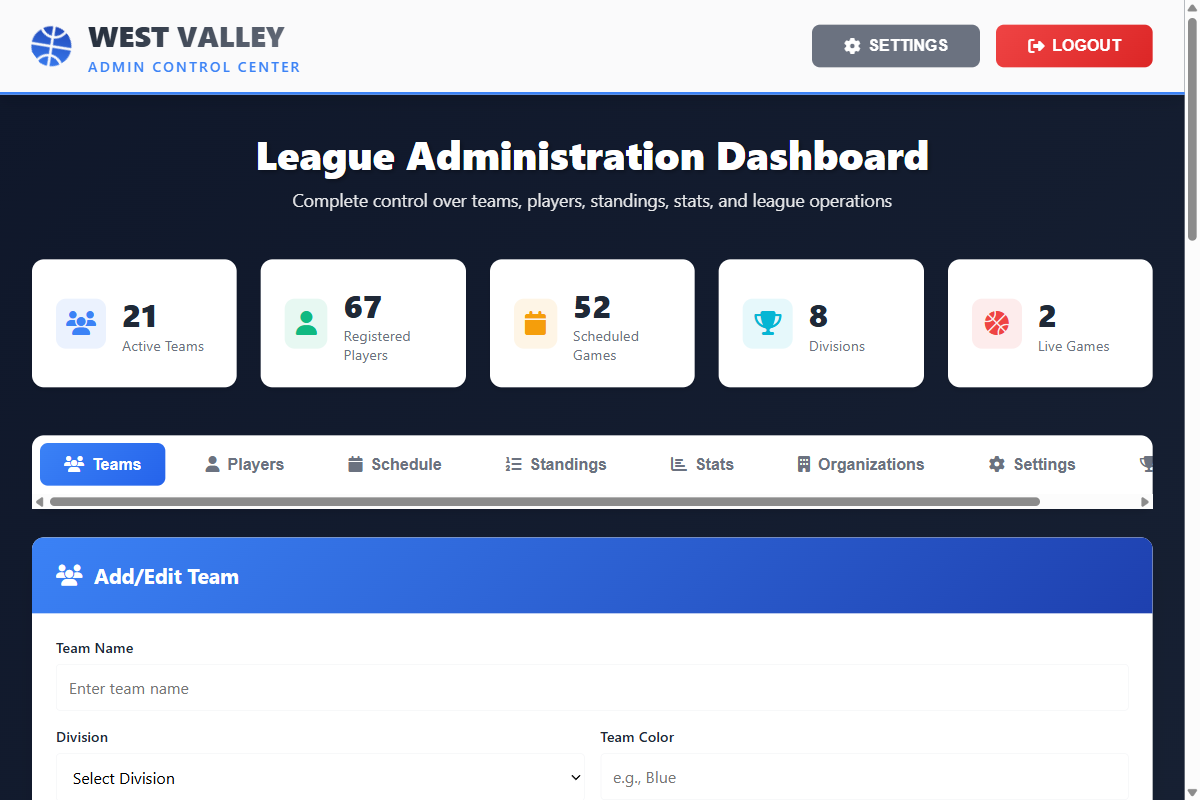
Dashboard Stats
At the top, you'll see real-time counts of:
- Active Teams - Total teams in your league
- Registered Players - Total players across all rosters
- Scheduled Games - Games on your schedule
- Divisions - Age groups or skill levels you've set up
- Live Games - Games currently in progress
Navigation Tabs
Use the tabs to switch between sections:
- Teams - Add, edit, and manage teams
- Players - Manage player rosters and transfers
- Schedule - Create and manage game schedules
- Standings - View current standings by division
- Stats - See player statistics and leaderboards
- Organizations - Manage clubs/organizations
- Settings - Configure league settings and rules
- Playoffs - Set up playoff brackets
🏀 Adding Teams
How to Add Teams to Your League
The Teams tab is where you add and manage all the teams in your league. Each team can be assigned to a division and linked to a coach.
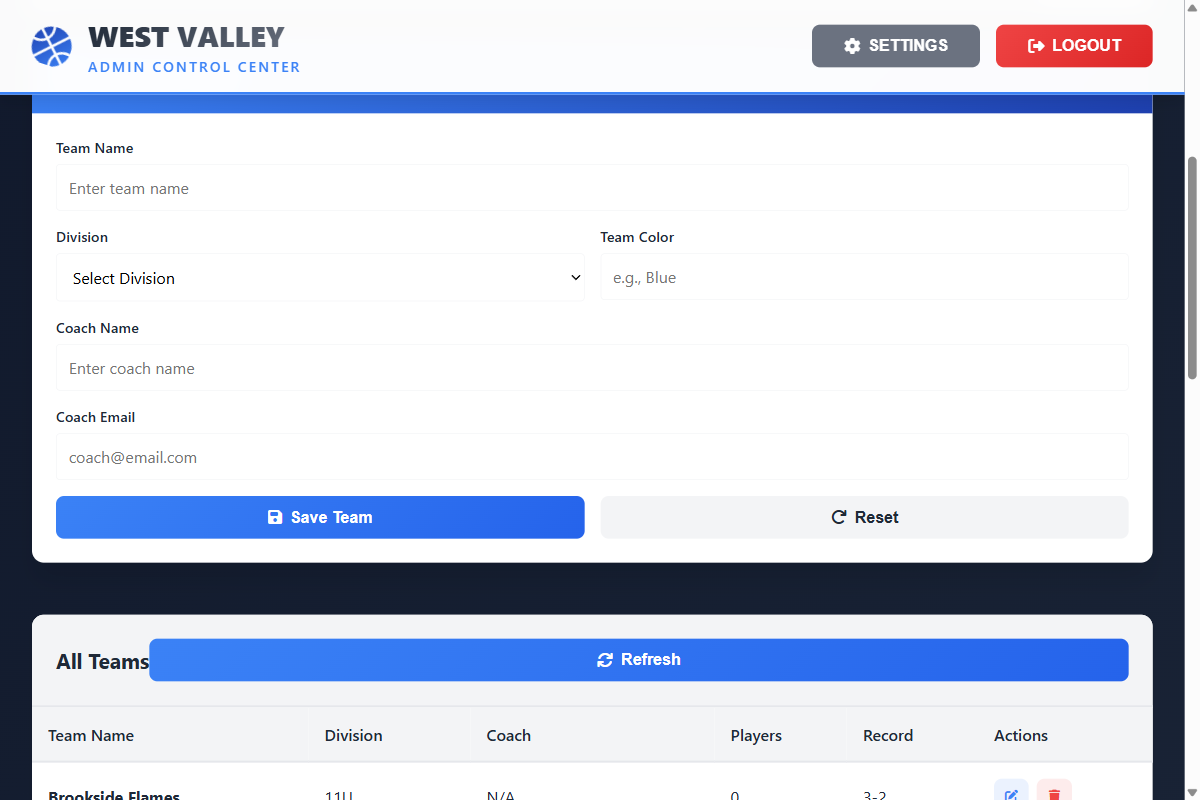
Adding a New Team
- Click the Teams tab in the dashboard
- Fill in the team information:
- Team Name - e.g., "Eastside Thunder"
- Division - Select the age group (4th Grade, 5th Grade, etc.)
- Team Color - Their jersey color (optional)
- Coach Name - Head coach's name
- Coach Email - For sending schedule updates
- Click Save Team
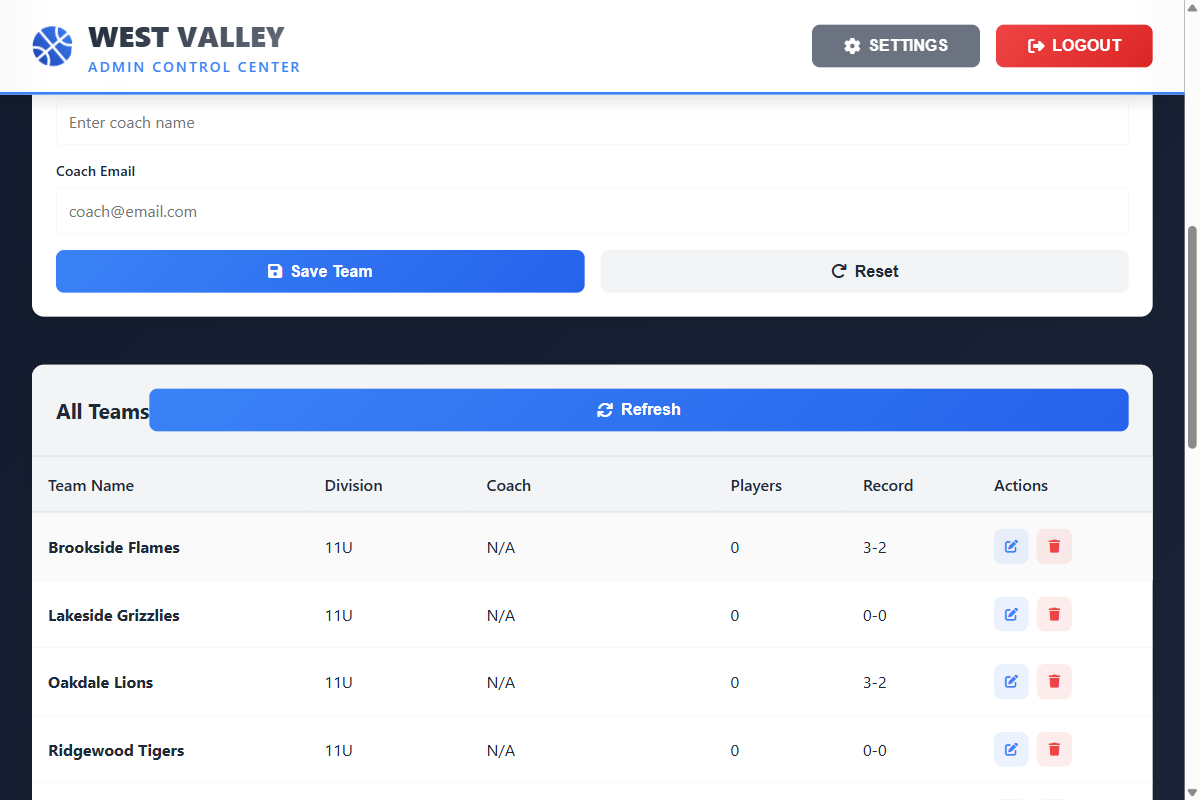
Managing Existing Teams
The teams table below the form shows all your teams. For each team you can:
- Edit (pencil icon) - Update team information
- Delete (trash icon) - Remove a team from the league
Deleting a team will also remove their scheduled games. Make sure you want to fully remove the team before deleting.
🏃 Adding Players
Managing Player Rosters
The Players tab lets you add players to team rosters, manage jersey numbers, and handle transfers between teams.
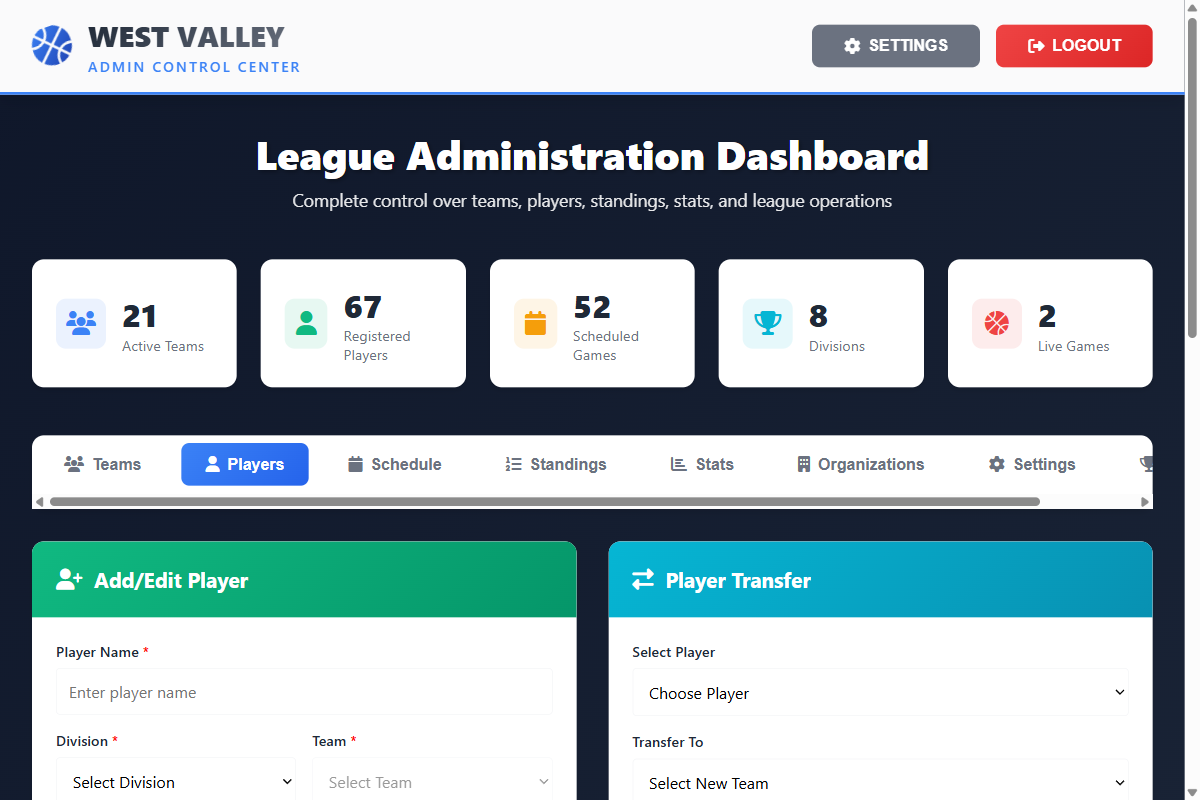
Adding a New Player
- Click the Players tab
- Fill in the player details:
- Player Name - First and last name
- Division - Select the division first
- Team - Then select which team (filtered by division)
- Jersey Number - Their uniform number
- Position - PG, SG, SF, PF, or C (optional)
- Parent Email - For sending player cards (optional)
- Click Save Player
Transferring Players
If a player needs to move to a different team, use the Player Transfer section:
- Select the player from the dropdown
- Choose their new team
- Add a reason for the transfer (optional)
- Click Execute Transfer
Player stats transfer with them! If a player moves mid-season, their previous game stats stay on their record.
📅 Creating Your Schedule
Scheduling Games
The Schedule tab is where you create and manage all games in your league. Each game needs a home team, away team, date/time, and location.
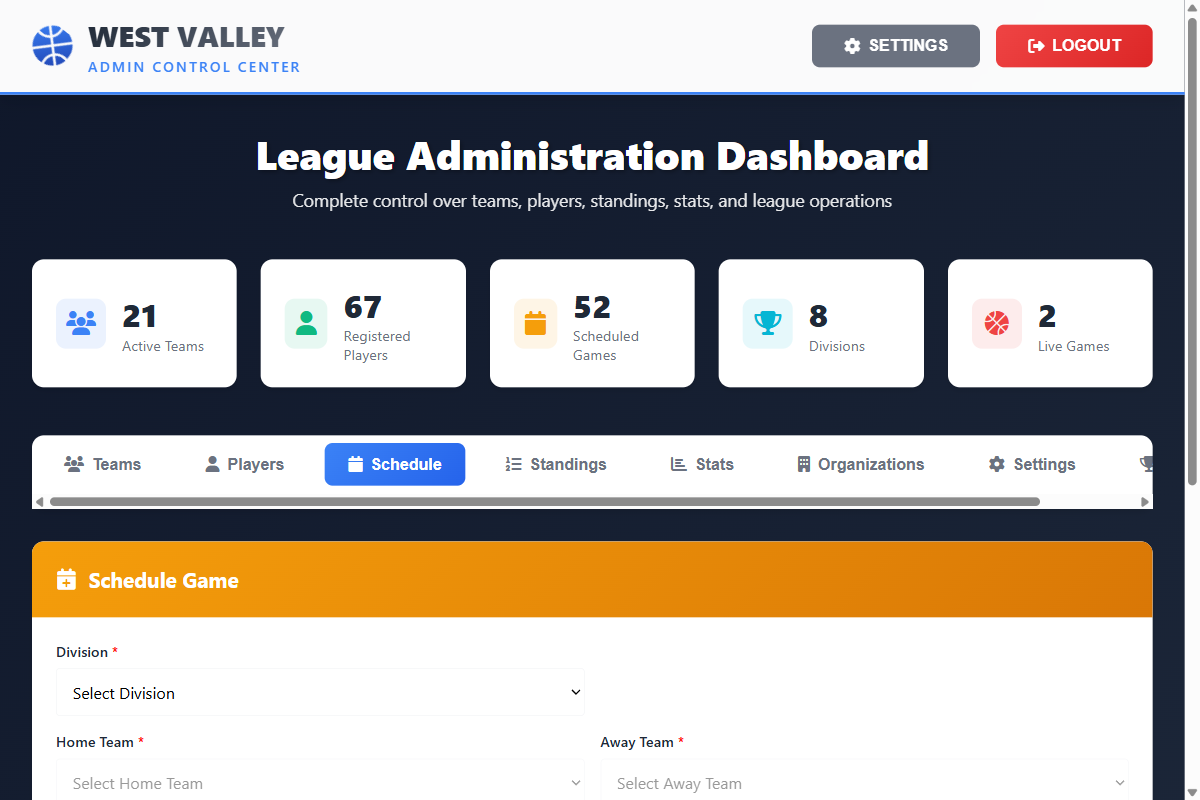
Scheduling a Game
- Click the Schedule tab
- Select the Division - This filters the team dropdowns
- Choose the Home Team
- Choose the Away Team
- Set the Game Date & Time
- Enter the Location (gym name, court number, etc.)
- Click Schedule Game
The Games Table
Below the form, you'll see all scheduled games showing:
- Date and time
- Home and away teams
- Location
- Status (scheduled, in progress, completed)
- Final score (after the game is completed)
Schedule games at least a few days in advance so coaches and parents can plan. Games appear automatically on the public schedule!
⚙️ League Settings
Configuring Your League
The Settings tab lets you customize your league's rules and preferences.
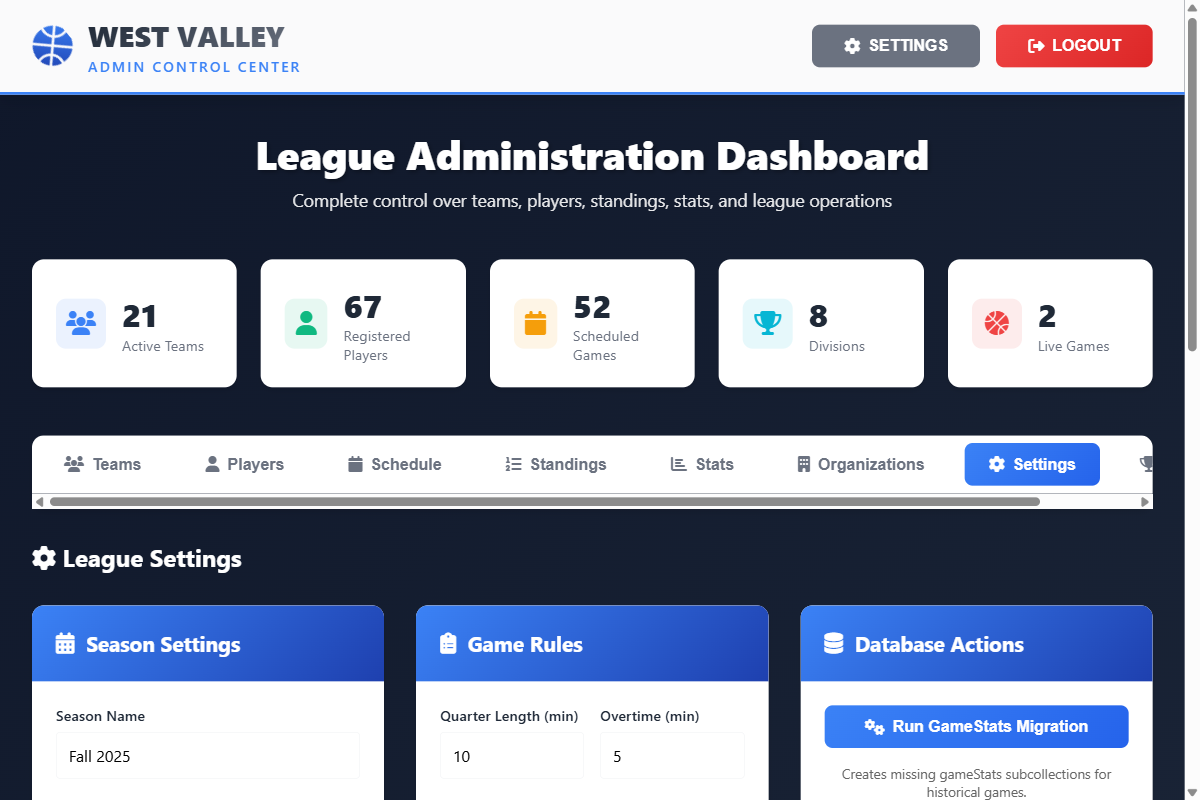
Season Settings
- Season Name - e.g., "Fall 2025" or "Winter League 2026"
- Start/End Dates - Defines your season timeframe
Game Rules
- Quarter Length - Minutes per quarter (typically 8-10 for youth)
- Overtime Length - Minutes for OT periods
- Timeouts per Half - Number of timeouts each team gets
- Fouls Limit - Personal fouls before fouling out
📊 For Scorekeepers
Entering Scores and Stats
Scorekeepers use a dedicated interface designed for easy game-day use. The interface features large buttons that work well on tablets and phones.
Getting Started as a Scorekeeper
- Go to your league's URL (e.g., yourleague.gametriq.com)
- Click Staff Login
- Select Scorekeeper and enter your credentials
- You'll see today's games - tap the game you're scoring
Entering Scores
The scorekeeper interface shows both teams with their players. To track stats:
- +2 (Green) - Two-point basket
- +3 (Purple) - Three-point basket
- FT (Blue) - Free throw made
- - (Red) - Remove points (for corrections)
You can also track:
- Rebounds (offensive and defensive)
- Assists
- Steals
- Blocks
- Fouls
Use an 8"+ tablet for stat tracking. The larger screen makes it easier to tap the right buttons during fast-paced games.
Scorekeeping requires internet connection (WiFi or mobile data). Stats sync in real-time, so parents can follow along from anywhere!
👀 What Parents & Fans See
The Public League Page
Parents, fans, and players can visit your league's public page to see standings, schedules, and stats - no login required!

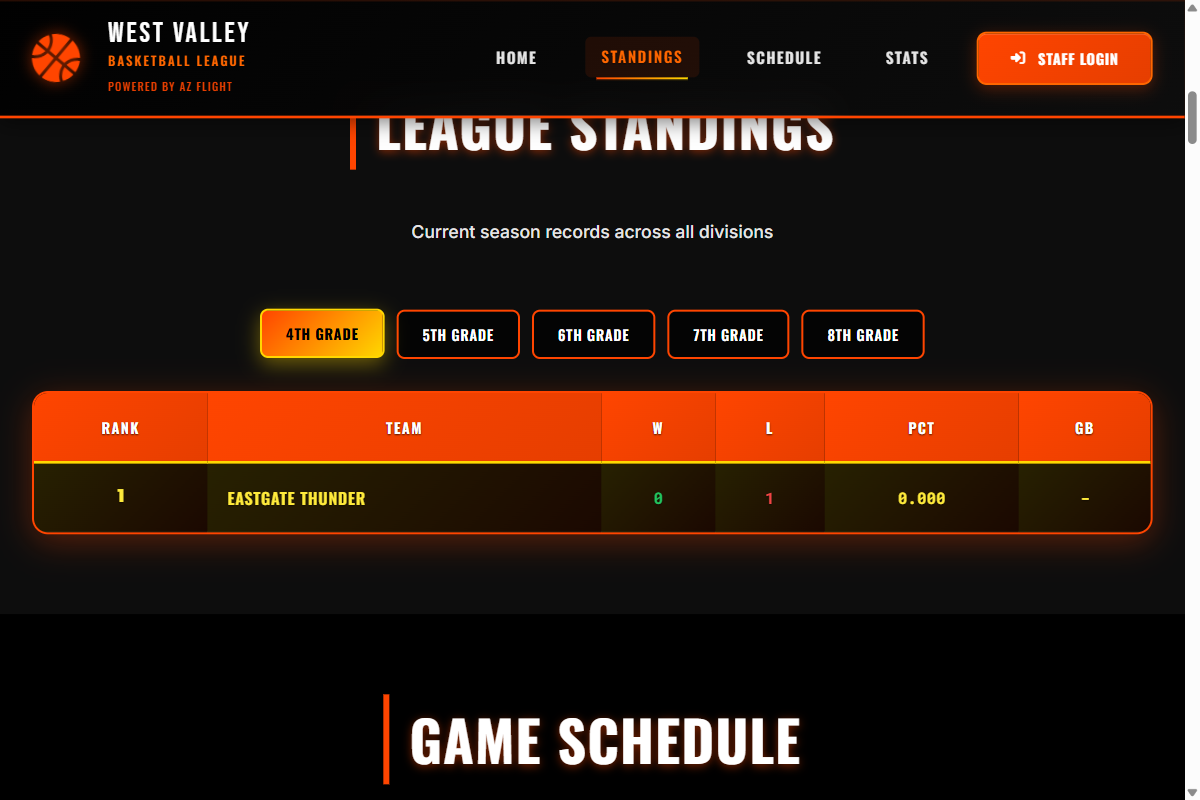
What's on the Public Page
- League Stats - Total teams, players, and games
- Standings - Current rankings by division with W-L records
- Schedule - Upcoming games and recent results with scores
- Leaderboards - Top players in scoring, rebounds, assists
- Live Ticker - Recent game results scrolling at the top
Send parents the link to your league page! They can bookmark it to check standings and schedules anytime.
📱 Device & Internet Requirements
What You Need
- Internet: Required for all features - WiFi or mobile data
- Devices: Any smartphone, tablet, or computer with a modern browser (Chrome, Safari, Firefox, Edge)
- For Admins: Desktop or laptop recommended for easier data entry
- For Scorekeepers: 8"+ tablet recommended for best experience during games
- For Parents/Fans: Any device works - phone is perfect for checking scores
- Need Tablets? We offer loaner tablet kits for leagues - contact us
Need Help?
Can't find what you're looking for? We're here to help!
- Email: hello@gametriq.com
- Response Time: Usually within 24 hours (often much faster)
When reaching out, let us know:
- Your league name
- What you're trying to do
- Any error messages you're seeing
- Screenshots help!